
Product feature
Create Pinterest Pins from an article, then edit and approve them
Start with a public article or paste its text. Writopin prepares editable Pin drafts, then leaves the review and publishing decisions with you.
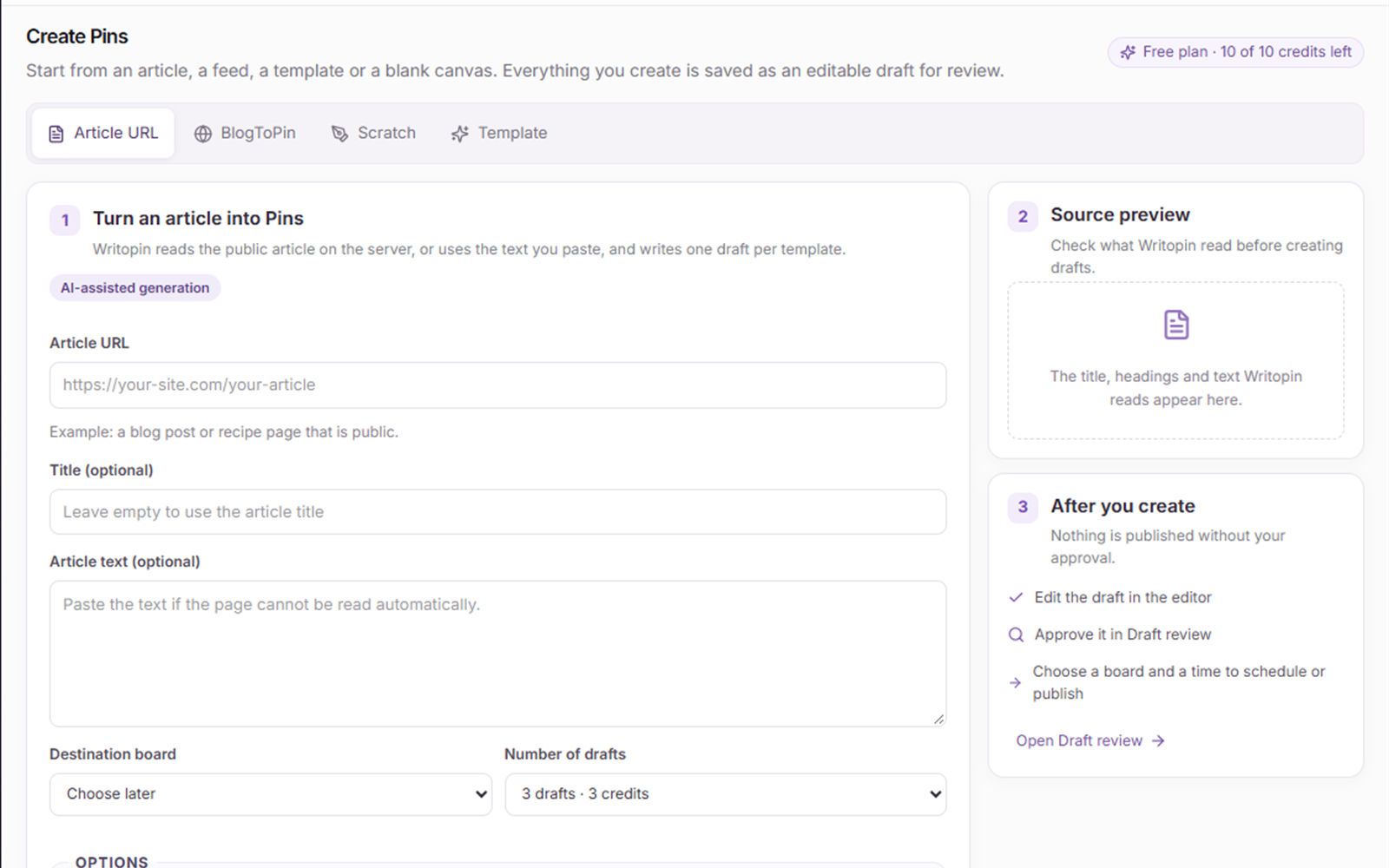
Quick answerWritopin reads the headline, headings, text and lead image from a public article URL, then prepares editable Pinterest Pin drafts using the templates you choose. You can also paste article text when a page cannot be read. Edit each design, approve the version you want, and schedule or publish it to your own account.
What Writopin does
Writopin reads an accessible article, creates drafts from its content and selected templates, and keeps those drafts in the workspace for review.
What you control
You choose the source and template, edit the design and Pin details, and decide whether to approve, schedule or publish each draft.
The process
How it works
Add a source
Paste a public article URL or provide the text directly.
Choose a direction
Pick a template and the images you want the draft to use.
Edit the draft
Adjust the design and Pin details in the editor.
Approve and schedule
Approve the version you want, then confirm its board and time.
How does Writopin create a Pin from an article?
Paste the public article address in the Pin builder. Writopin reads the page on the server and prepares a source preview with the headline, readable text and available lead image. If the site blocks automated reading, paste the article text instead.
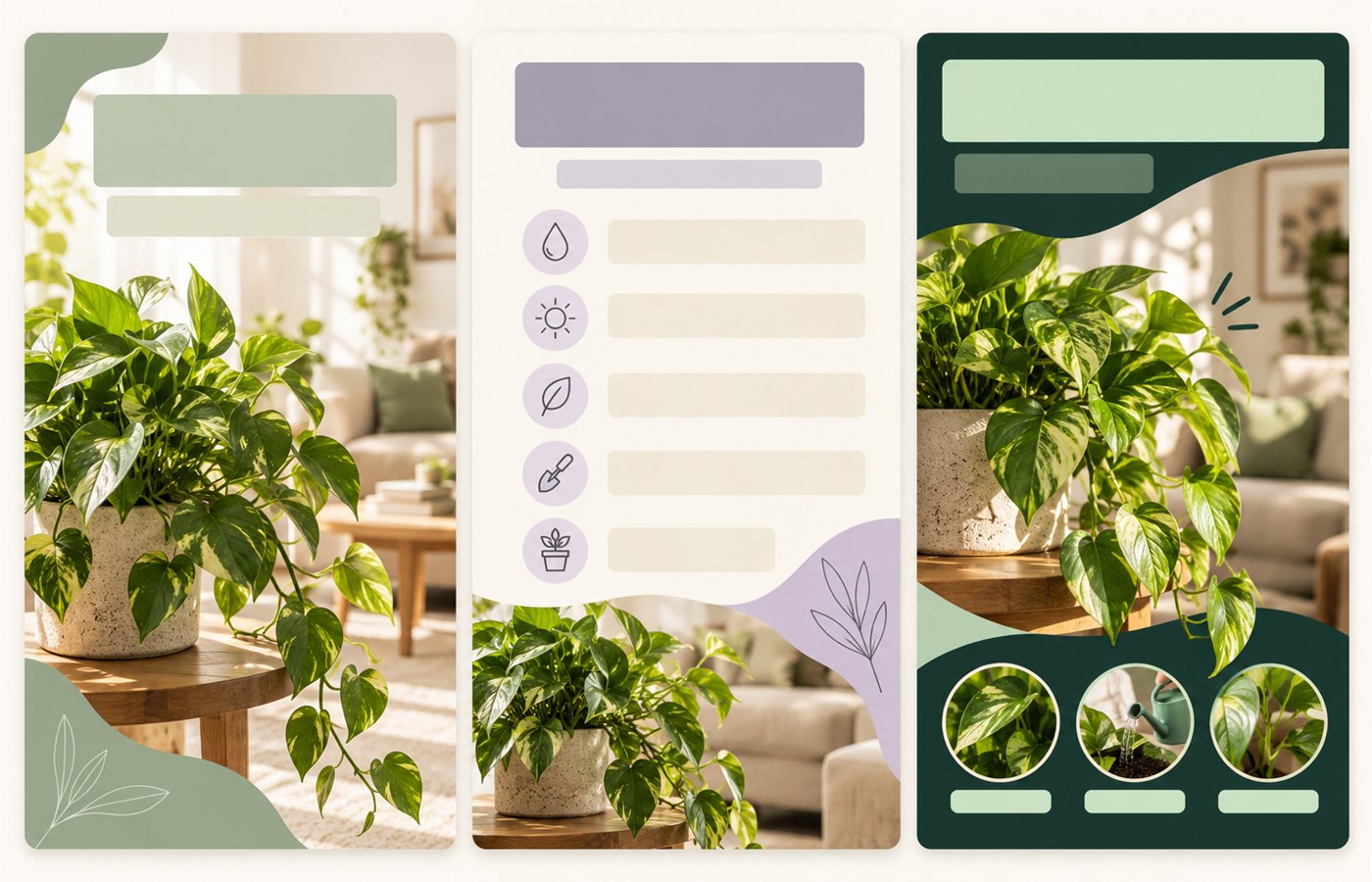
Choose a template and image source, then create drafts. Writopin makes one draft per selected template. You can select up to six templates for a set of distinct design directions, and each result stays editable in the editor.
- Add a public article URL or paste article text.
- Review the extracted source and select templates.
- Edit the resulting drafts before approving them.
- Choose a Pinterest board and confirm a schedule time, or publish an approved Pin now.
What does Writopin take from your article?
The source preview can include the article title, headings, readable paragraph text and a lead image when those details are available on the page. Writopin uses this material to draft Pin copy and fill the template you selected.
A page may not expose every image or piece of text in a format Writopin can read. Private pages, login screens and sites that block automated access cannot be imported by URL. Pasting text gives you another way to start.
What can you edit before a Pin goes live?
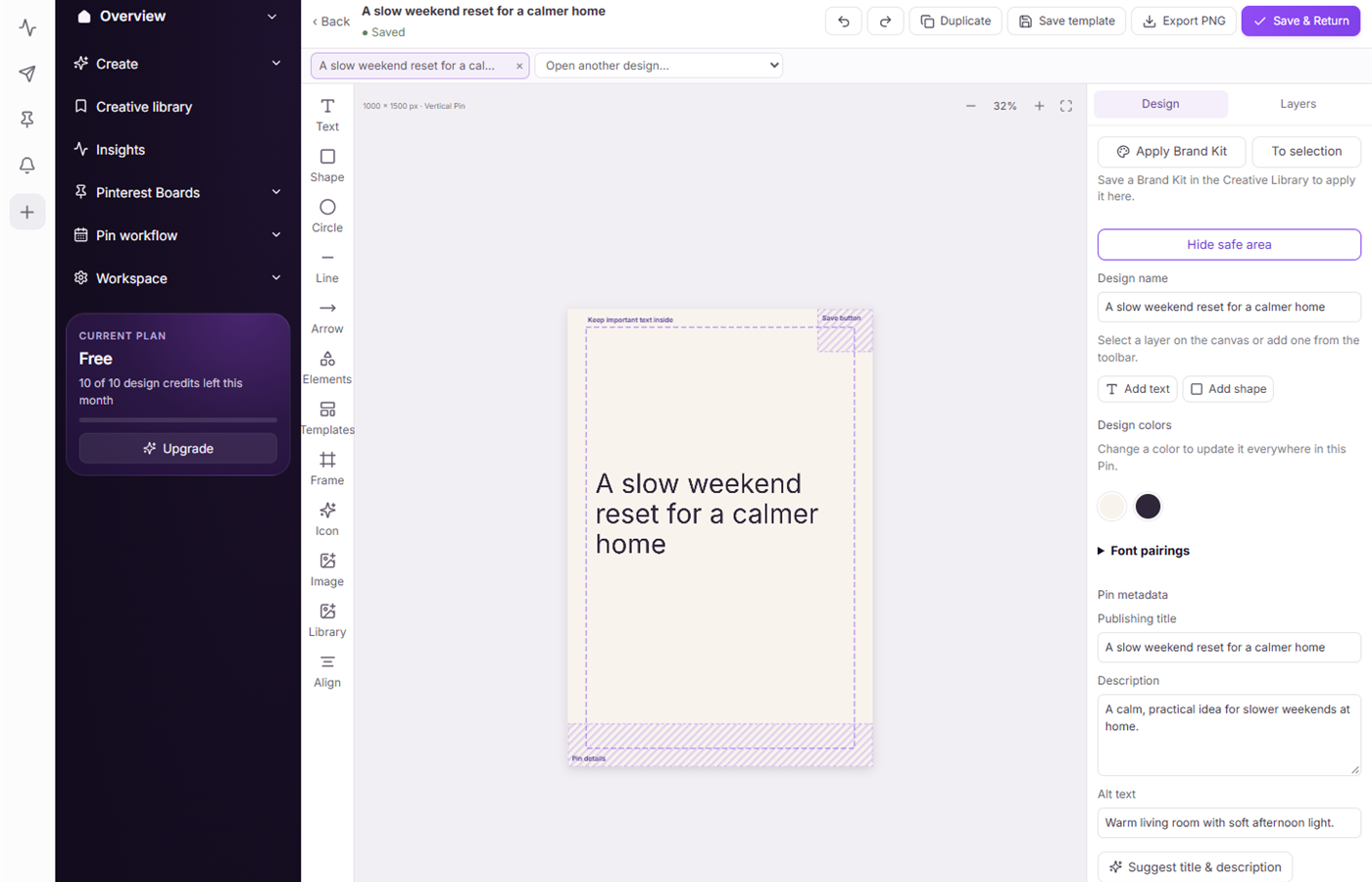
You can change the Pin design and its publishing details before approval. The editor keeps text, image placement, colors and layout available for changes. Pin details include its title, description, alt text, destination link and board.
The draft remains in your workspace while you review it. Creating an article draft does not publish it or schedule it. You decide which saved design version to approve and when it should go out.
Who uses article-to-Pin drafts?
This workflow suits writers and teams who already have useful articles and want to prepare Pinterest creative from that material. It can help when you need several visual directions for one article while keeping the source and destination link close to the draft.
The draft is a starting point, not a promise that a Pin will perform. Check that the image, wording, destination and any rights to the source material are appropriate before approving.
Some pages cannot be read by URL. Writopin does not guarantee traffic, saves, clicks or sales from a Pin.
Page content last reviewed 2026-10-17.
Built around your review
You choose what goes live
- You approve each Pin before it is scheduled or published.
- You sign in to Pinterest on Pinterest’s own authorization screen.
- Disconnecting removes stored tokens and pauses scheduled Pins.
- Stripe handles payments; card details do not reach Writopin.
Take a closer look at Writopin
Make Pins you are proud of.
Start with the free plan: no card needed. Upgrade when you need more credits or accounts.
Create your free account