
Product feature
Schedule Pins you create in Writopin
Bring your own images into the editor, add the Pin details, and schedule the designs you create. Finished Pin files cannot currently be bulk-imported.
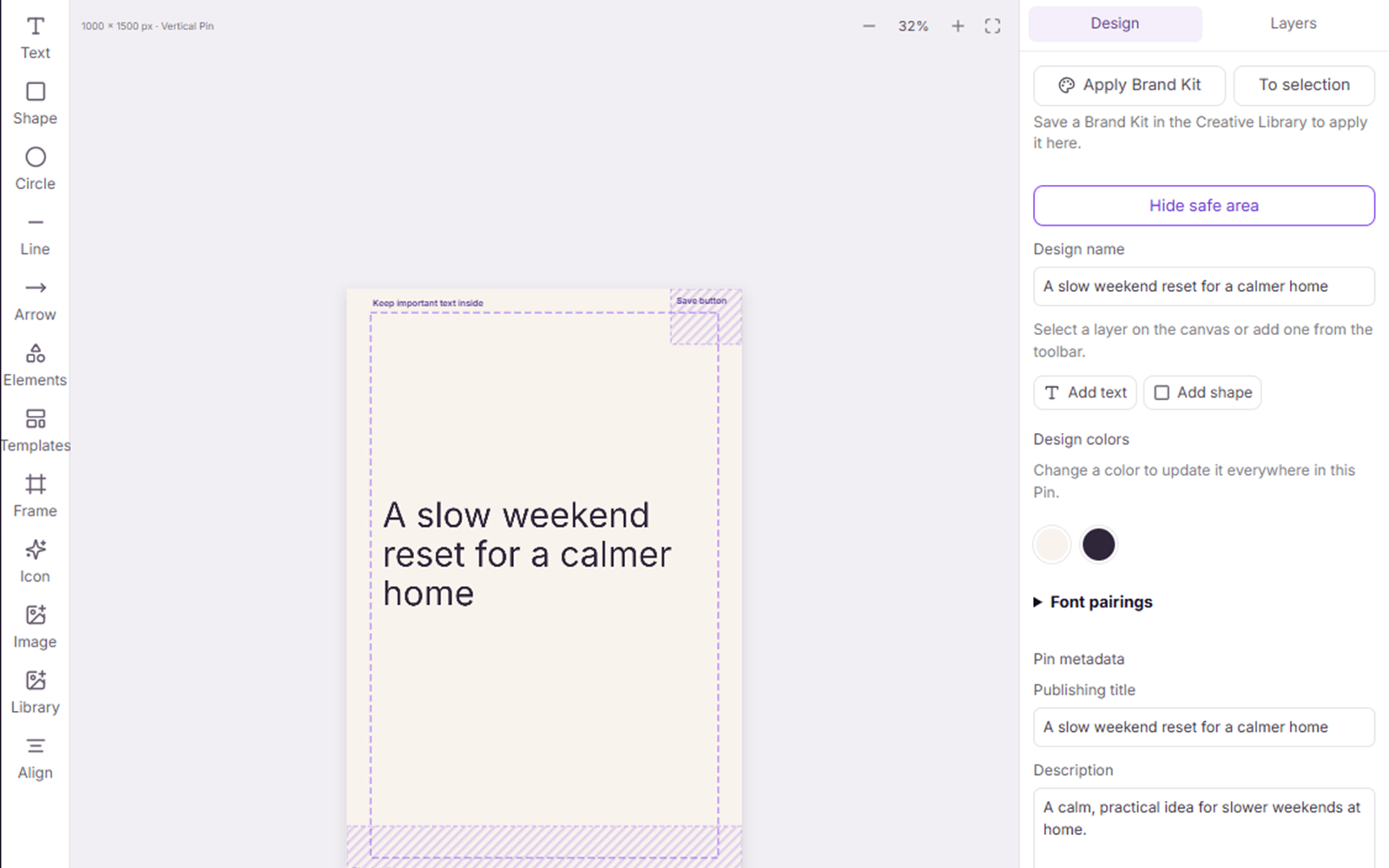
Quick answerYou can schedule Pinterest Pin designs that you create or edit in Writopin. Add your images in the editor, complete the Pin details, review the design and approve it before scheduling. Writopin does not currently support bulk-uploading a CSV list of finished Pins made elsewhere.
What Writopin does
Writopin lets you bring your images into its editor and schedule the designs you make in the workspace.
What you control
You supply the images and Pin details, make the design, choose the destination and time, and approve each Pin.
The process
How it works
Add an image
Upload your image to the Writopin workspace.
Finish the Pin
Use the editor to add copy, layout and publishing details.
Approve it
Review the design version, destination and board.
Schedule it
Choose a proposed time and confirm the publication.
What does “schedule your own Pins” mean in Writopin?
You can use Writopin as the place where you add your images, finish the Pin design and schedule it to Pinterest. The editor includes a blank canvas and templates, so your own images and copy can form the final design.
The current product does not provide a bulk-upload screen for finished Pin files and a list of metadata. It does not accept a CSV of images, titles, descriptions, links and dates. This page describes the supported workflow inside Writopin so the limitation is clear.
- Upload image assets to your Writopin workspace.
- Create or edit the Pin design in the editor.
- Enter the title, description, destination and board.
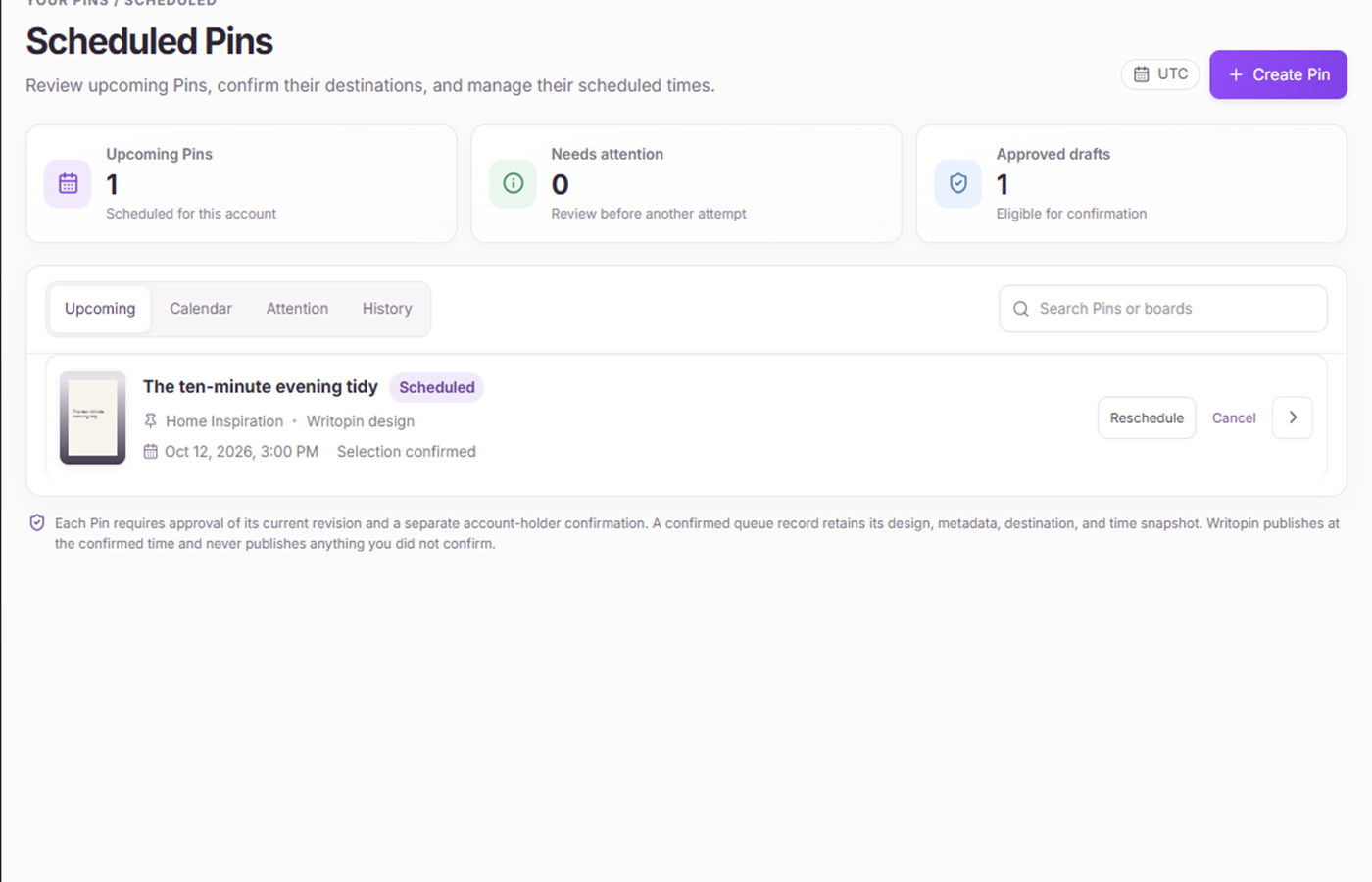
- Approve and schedule the design from your calendar.
How do you schedule a Pin you designed?
Open the editor, add the image and Pin details, then save the design. Review the design and approve the saved version when it is ready. The scheduler can then propose a time for that workspace design alongside other Pins you select.
You can review the board and time before confirming. Bulk schedule limits depend on your plan: the current catalog allows 10 selected Pins on Free, 30 on Creator and 100 on Pro in one batch. These limits apply to designs in the workspace.
Do scheduled designs use design credits?
Scheduling a design does not generate another design, so it does not spend an additional design credit. A design credit is used when Writopin completes a generated design. AI photos have a separate allowance when you choose that option.
The scheduler has its own plan limit for how many designs can be confirmed in a batch. Check the plan catalog and the current workspace message before scheduling a large set.
What if you need external bulk upload?
If your Pins are already finished as files in another service, the current Writopin product does not offer a CSV or folder upload that creates a bulk schedule from them. Add the image files to a design in Writopin and provide its publishing details instead.
This limitation may change in a future product update. Until then, do not plan a workflow around importing finished Pin lists or assigning dates from a spreadsheet.
Bulk upload of finished Pins from a CSV or external design library is not currently supported. Scheduling does not guarantee traffic or saves.
Page content last reviewed 2026-10-17.
Built around your review
You choose what goes live
- You approve each Pin before it is scheduled or published.
- You sign in to Pinterest on Pinterest’s own authorization screen.
- Disconnecting removes stored tokens and pauses scheduled Pins.
- Stripe handles payments; card details do not reach Writopin.
Take a closer look at Writopin
Make Pins you are proud of.
Start with the free plan: no card needed. Upgrade when you need more credits or accounts.
Create your free account